Accessible Focus Traps: Trap the Keyboard, Not the User
 Łukasz Holeczek
Follow Łukasz Holeczek on GitHub
Connect with Łukasz Holeczek on LinkedIn
Follow Łukasz Holeczek on X (Twitter)
Łukasz Holeczek
Follow Łukasz Holeczek on GitHub
Connect with Łukasz Holeczek on LinkedIn
Follow Łukasz Holeczek on X (Twitter)
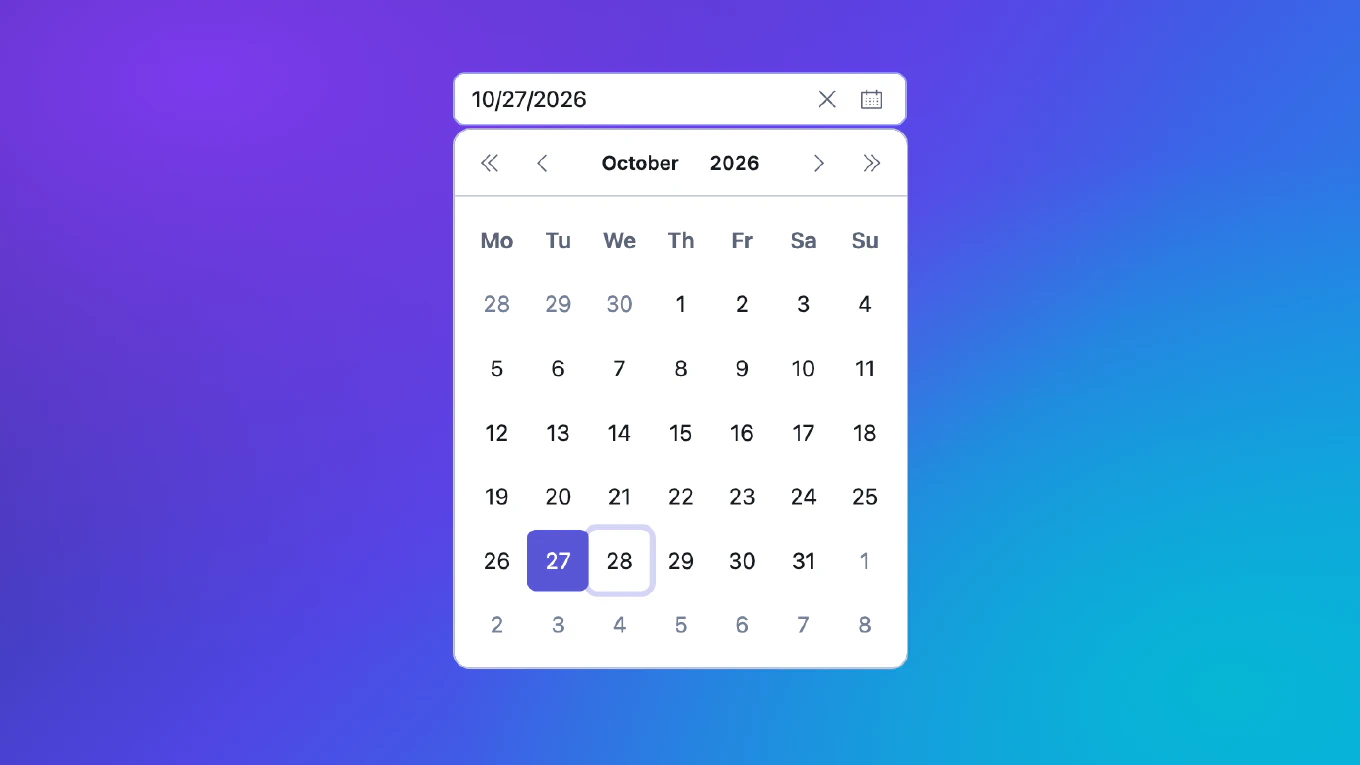
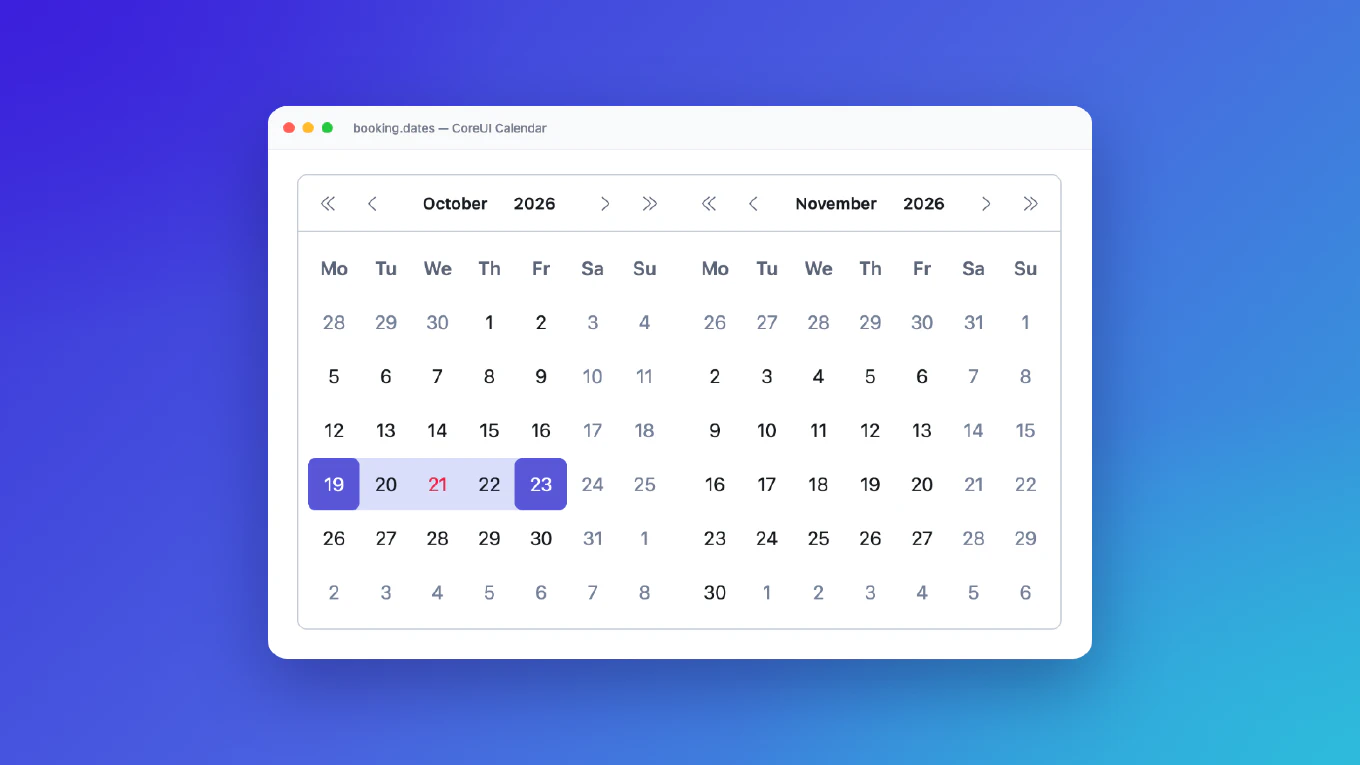
Date pickers, comboboxes, menus and popovers all open a panel on top of the page. The moment that panel opens, the keyboard has a question to answer: where does the focus go now, where may it go next, and where does it land when the panel closes? Get it wrong and a keyboard user walks out of an open calendar into the page behind it, or a screen reader user is sent back to the top of the document after picking a date.
This guide covers how to answer those questions in a way that works for keyboard users, screen reader users and everyone using a mouse or a finger. The examples are plain JavaScript, so they apply to any framework.
Speed up your responsive apps and websites with fully-featured, ready-to-use open-source admin panel templates—free to use and built for efficiency.
First decide: is the panel modal?
A modal panel takes over the page. Nothing behind it can be used until it
closes. A confirmation dialog is modal: you add aria-modal="true", make the
rest of the page inert, and the focus has nowhere else to go.
A non-modal panel sits on top of a page that is still usable. A combobox list, a menu, and most date picker panels are like that: the user can click the field next to it, the page can move the focus in response to a selection, and a click outside should simply close the panel.
This choice drives everything below. The WAI-ARIA Authoring Practices date picker example, for instance, makes the calendar a modal dialog. That is a valid design. If you keep the rest of the page usable instead, you need a lighter tool than a modal focus trap.
The relevant success criteria are the same either way:
- 2.1.1 Keyboard and 2.1.2 No Keyboard Trap: everything works from the keyboard, and the user can always get out.
- 2.4.3 Focus Order: the focus moves in an order that preserves meaning.
- 2.4.7 Focus Visible and 2.4.11 Focus Not Obscured: the user can see where the focus is, and it is not hidden behind something or scrolled away.
Trap Tab, not focus
The usual way to build a focus trap is to listen for every focus change on the document and pull the focus back into the panel whenever it leaves. For a modal dialog that is acceptable, because nothing outside should take the focus anyway. For a non-modal panel it causes real harm:
- A user clicks the field next to the panel. The trap pulls the focus back, and their typing goes nowhere.
- The application focuses the next field after a date is picked. The trap wins and undoes it.
- Some screen reader settings move the system focus along with the reading cursor. The trap holds that user inside a panel they are trying to read past.
What a non-modal panel actually needs is narrower: when the user presses Tab on the last element, go to the first one, and the other way round for Shift+Tab. Pointers, scripts and assistive technology should move the focus wherever they point.
Build it with two guards
The simplest way to trap only Tab is to put two empty, focusable elements around the panel, one before it and one after. When Tab runs past the last element, the browser lands on the guard after the panel, and that guard sends the focus to the first element. A click or a script never lands on a guard, so they are left alone. The trap needs no document listener and no state.
const FOCUSABLE = [
  'a[href]', 'button', 'input', 'select', 'textarea',
  '[tabindex]:not([tabindex="-1"])'
].map(selector => `${selector}:not([data-focus-guard])`).join(',')

function focusables(panel) {
  return [...panel.querySelectorAll(FOCUSABLE)]
    .filter(element => !element.disabled && element.getClientRects().length > 0)
}

function createGuard() {
  const guard = document.createElement('span')
  guard.tabIndex = 0
  guard.dataset.focusGuard = ''
  guard.setAttribute('aria-hidden', 'true')
  Object.assign(guard.style, {
    position: 'fixed', width: '1px', height: '1px', padding: '0',
    margin: '-1px', overflow: 'hidden', clip: 'rect(0 0 0 0)', border: '0'
  })
  return guard
}

export function trapTab(panel) {
  const before = createGuard()
  const after = createGuard()

  // Arriving from inside the panel (or from nowhere) means the user wrapped around.
  const fromInside = event => !event.relatedTarget || panel.contains(event.relatedTarget)

  before.addEventListener('focus', event => {
    const list = focusables(panel)
    const target = fromInside(event) ? list.at(-1) : list[0]
    ;(target ?? panel).focus()
  })

  after.addEventListener('focus', event => {
    const list = focusables(panel)
    const target = fromInside(event) ? list[0] : list.at(-1)
    ;(target ?? panel).focus()
  })

  panel.before(before)
  panel.after(after)

  return () => {
    before.remove()
    after.remove()
  }
}
The guards sit next to the panel, not inside it, so they never show up when you query the panel’s own content. Add them when the panel opens, and remove them when it closes.
There is a second benefit. The browser decides what the Tab stops are, so you never have to guess. Safari on macOS skips buttons on Tab unless the user enables “Press Tab to highlight each item”, so in a calendar the only stop may be the day grid. A trap that computes “the last focusable element” itself guesses wrong there. With guards, the browser simply reaches a guard when it runs out of stops. The same holds for a panel at the very end of the document, where a trap that watches only the last element lets Tab escape to the browser toolbar.
Hide the guards from screen readers
An empty focusable element is the kind of thing a screen reader can stumble
over, so the guards carry aria-hidden="true". With the guards hidden, every
Tab, including the wraps through a guard, announces the element it lands on,
and the guards themselves are never announced.
Automated checkers will flag this. axe-core reports aria-hidden-focus for a
focusable element with aria-hidden. Removing aria-hidden does not give you
a clean report, it moves the problem: the experimental focus-order-semantics
rule fires instead, and a trap around list items adds list structure errors.
More importantly, a screen reader whose cursor moves the system focus could
then stop on an exposed guard and be bounced back into the panel. Keep the
guards hidden and note the axe report in your documentation. Floating UI and
Headless UI make the same choice.
Put the focus where the user expects it
When the panel opens from the keyboard, move the focus into it:
- Date picker: the selected date, otherwise today, otherwise the first day
in view. Use a roving
tabindexon the grid, so the grid is one Tab stop and the arrow keys move between days. - Listbox or combobox: keep the focus in the input and point to the active
option with
aria-activedescendant. The user keeps typing while the arrow keys move through the options. - Menu: the first item, or the last one when it was opened with the Up arrow.
- Panel with a search field: the search field.
Opening with a mouse can follow the same rules. What matters is that the focus never sits on a guard or on an element the user cannot see.
Close it the way users expect
Escape
Close on keydown, not keyup, so the panel is gone before the next key
repeats. Respect event.defaultPrevented: if a nested panel, say a time
picker inside a date picker, already handled Escape, only that panel should
close. When the panel handles Escape itself, call preventDefault() so an
enclosing dialog does not close as well.
panel.addEventListener('keydown', event => {
  if (event.key === 'Escape') {
    event.preventDefault()
    event.stopPropagation()
    close({ returnFocus: true })
  }
})
A click outside
“Close on a click outside” hides three traps:
- The click target lies. A user who starts selecting text in the panel
and releases outside gets a
clickon the common ancestor, which is outside. Decide on where the press started. - Other components stop propagation. A clear button or a chip’s remove
button that calls
stopPropagation()hides its click from a listener in the bubble phase, and two panels end up open. Listen in the capture phase. - iOS Safari may not send the click. A tap on content it does not consider
clickable dispatches no
clickto a listener on the document. The common workaround is an emptymouseoverlistener on the children ofbodywhile the panel is open.
let pressedOutside = false
const isOutside = event =>
  !event.composedPath().some(node => node === panel || node === field)

document.addEventListener('pointerdown', event => {
  pressedOutside = event.button === 0 && isOutside(event)
}, true)

document.addEventListener('click', event => {
  const wasOutside = pressedOutside
  pressedOutside = false

  if (wasOutside && isOutside(event)) {
    close({ returnFocus: false })
  }
}, true)
composedPath() keeps this correct when the component lives in a shadow root,
where event.target at the document level is the shadow host. Requiring a
primary-button press also means a right click, the click that opened the
panel, and a keyboard activation of another button do not close it. React
Aria uses the same press-then-click model.
Return the focus, but only when it is yours to return
When the panel closes with the focus inside it, the focus would otherwise
fall to <body>, and a keyboard or screen reader user starts over from the
top of the page. So you return it to the field or the button that opened the
panel. The important part is when not to:
Return the focus only if, at the moment of closing, it is inside the panel or on no element at all.
function close({ returnFocus = true } = {}) {
  const active = panel.getRootNode().activeElement
  const focusIsOurs = !active || active === document.body || panel.contains(active)

  panel.hidden = true
  field.setAttribute('aria-expanded', 'false')

  if (returnFocus && focusIsOurs && !field.disabled) {
    field.focus()
  }
}
That one condition covers most cases correctly:
- Escape, choosing an option, a close button: the focus was in the panel, so it goes back.
- A click outside: the user put their pointer somewhere else. Leave the
focus there. That is why the outside-click handler passes
returnFocus: false. - The page moved the focus to another field while the panel was open: it is not in the panel, so it stays.
- A disabled field is never focused, which would fire focus and blur events the user never caused.
Check the condition before you hide the panel. Hiding a focused element
moves the focus to <body> on its own, and you can no longer tell where it
was.
Do this in one place per panel. When the Escape handler, the selection handler, the trap and the cleanup code each move the focus, they disagree in exactly the edge cases above, and the user sees the focus jump twice.
Tell assistive technology what happened
- Set
aria-expanded="false"on the toggle before you move the focus back to it. The screen reader then announces it as collapsed, not expanded. - Let the returned focus scroll into view. Avoid
preventScrollwhen the user came from inside the panel, so the toggle is not left off screen (2.4.11 Focus Not Obscured). - Give the panel a role that matches what it is:
dialogfor a calendar,listboxfor options,menufor a menu. Link the toggle to it witharia-controlsand announce it witharia-haspopup.
Test it like a user
- Keyboard only: open, Tab around the whole cycle in both directions, close with Escape, and check where the focus lands each time.
- Safari on macOS with the default Tab setting, then again with “Press Tab to highlight each item” turned on. They produce different Tab stops.
- A screen reader: at least VoiceOver on macOS and NVDA on Windows. Listen for every wrap, and for anything announced as empty or as an unnamed group.
- Mouse and touch: click a field next to the open panel and start typing. Select text in the panel and release outside. Tap plain content on a phone.
- axe: run it with the best-practice and experimental rules too, and decide in advance which findings you accept and why.
If you unit test in jsdom, remember that it reports no layout, so
getClientRects() is empty and visibility checks reject every element unless
you stub it. Test the decision (“does the code call focus()?”) there, and the
real focus movement in a browser.
Common mistakes
- Pulling every focus change back into a non-modal panel.
- Computing the last Tab stop yourself instead of letting the browser decide.
- Leaving focus guards visible to screen readers.
- Returning the focus after a click outside.
- Closing on
pointerdownand acting on the click target. - Handling Escape on
keyup, or ignoring an Escape a nested panel already used. - Moving the focus from several places when a panel closes.
- Announcing the toggle before
aria-expandedis updated.
How CoreUI handles it
The date pickers, time pickers, comboboxes, multi selects and menus in CoreUI v6 follow these rules in vanilla JavaScript, React and Vue: a Tab-only trap built on hidden guards, one place per panel that hands the focus back, and outside clicks decided on a primary press in the capture phase. If you would rather not build all of this yourself, they are a good place to start.