Focusable Is Not Selectable: A Keyboard Focus Model for Date Grids
 Łukasz Holeczek
Follow Łukasz Holeczek on GitHub
Connect with Łukasz Holeczek on LinkedIn
Follow Łukasz Holeczek on X (Twitter)
Łukasz Holeczek
Follow Łukasz Holeczek on GitHub
Connect with Łukasz Holeczek on LinkedIn
Follow Łukasz Holeczek on X (Twitter)
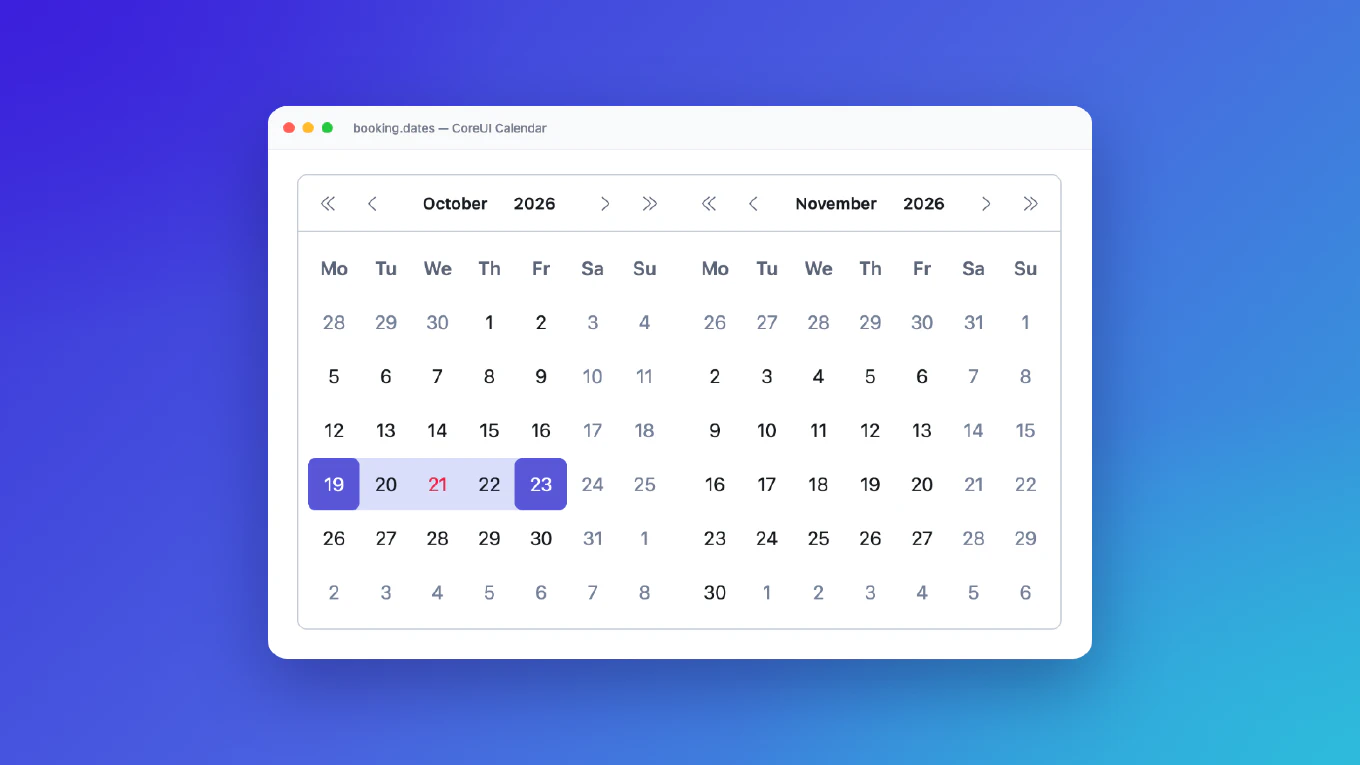
Open almost any date picker, press Tab until you reach the grid, and focus lands on a day. Which day it can land on, and which days the arrow keys can reach, comes down to one small decision that most implementations make without noticing: can an unavailable date receive focus?
The intuitive answer is no. A disabled date is disabled, so you render it as
<button disabled>, the browser skips it, and you move on. It looks right in
a demo. It stops being right as soon as a real product starts disabling
dates: weekends, public holidays, fully booked days, a minimum notice period,
a cut-off time.
This post describes the model we use in the CoreUI v6 Calendar, and why: a cell’s focusability depends only on the calendar’s limits. Everything else decides only whether the cell can be selected.
Speed up your responsive apps and websites with fully-featured, ready-to-use open-source admin panel templates—free to use and built for efficiency.
Two questions, not one
Every cell in a date grid answers two questions:
- Can I get here? Can the keyboard move focus to this cell, and can a screen reader user discover it?
- Can I pick this? Will Enter, Space or a click select this date?
When a single disabled flag answers both, they become the same question,
and that is where the problems start.
What goes wrong when focus follows selectability
A page with nothing to pick has no tab stop
Take a booking calendar with weekends disabled and a month that is fully
booked. Every day on the page is unavailable, so every day is unfocusable.
A roving tabindex needs one cell with tabindex="0", and there is none.
Press Tab and you jump straight past the calendar.
A mouse user sees a month of greyed-out days and understands it at a glance. A keyboard user gets nothing: no grid, no hint that it is there, and no way to page to the next month from inside it.
Unavailable dates disappear for screen reader users
With focus skipping disabled cells, the arrow keys jump from the 15th to the 18th. Sighted users see the 16th and 17th in grey. A screen reader user hears “15”, then “18”, and has no way to know that the two days in between exist and cannot be booked. “This date is unavailable” and “this date is not there” become the same thing.
Every new rule needs another workaround
Once focus has to avoid unselectable cells, the component needs code that finds somewhere else to put it:
- on open, find the nearest month that has something selectable;
- on every arrow key, search for the next enabled date;
- in week, month and year views, decide which row or period inherits the tab stop.
Each of these is an approximation of the same fact, computed in a different place. Add a new way to disable dates and every one of them has to learn about it. Miss one, and the page without a tab stop is back.
How other libraries answer it
Before settling on a model, I read how the libraries I trust handle this, in their source code rather than their docs:
| Library | Unavailable date inside the range | Date outside min/max |
|---|---|---|
| React Aria | focusable, aria-disabled |
not focusable |
| Zag.js / Ark UI | focusable (stays in the roving tabindex), Enter does nothing | not focusable |
| MUI X | <button disabled>, not focusable |
not focusable |
MUI X follows the intuitive model, and its keyboard handler shows the cost:
every arrow key goes through findClosestEnabledDate to find a date that
focus is allowed to land on. React Aria and Zag.js keep the two questions
apart. In React Aria the tab index comes from isDisabled (outside the
limits, or the whole calendar disabled), while aria-disabled comes from
!isSelectable, which also covers dates marked by isDateUnavailable.
The ARIA Authoring Practices Guide supports the second approach: inside composite widgets it recommends keeping disabled elements focusable when users need to discover them. A date grid is exactly that case.
Sources, read at a fixed commit: React Aria
packages/react-aria/src/calendar/useCalendarCell.ts (react-spectrum
5a6c3250), Zag.js packages/machines/date-picker/src/date-picker.connect.ts
(973921ea), MUI X packages/x-date-pickers/src/DateCalendar/DayCalendar.tsx
(fcb9acd4).
The model
- Focusable: the cell falls between the
minDateday and themaxDateday. The comparison uses the date only and ignores the time of day. - Selectable: everything else decides this. Disabled dates, the time-of-day part of a limit, days from the adjacent month and whole week rows all count here.
- An unselectable cell inside the range stays focusable and carries
aria-disabled="true". Enter, Space and click do nothing on it, and the arrow keys move through it like any other day.
The two flags are computed independently, in one place:
function getCellState(date, { minDate, maxDate, isDateDisabled }) {
  const inRange = !isBeforeDay(date, minDate) && !isAfterDay(date, maxDate)
  const selectable = inRange && !isDateDisabled(date)

  return { focusable: inRange, selectable }
}
The rendered grid follows from that state. One cell holds tabindex="0",
the other focusable cells get -1, and cells outside the range get no
tabindex at all:
<td role="gridcell" tabindex="0" aria-label="Friday, October 16, 2026">16</td>
<td role="gridcell" tabindex="-1" aria-disabled="true" aria-label="Saturday, October 17, 2026">17</td>
<td role="gridcell" aria-disabled="true" aria-label="Monday, November 2, 2026">2</td>
Selecting asks the same function instead of reading attributes back from the DOM, so there is exactly one place that knows what can be picked:
grid.addEventListener('keydown', event => {
  if (event.key !== 'Enter' && event.key !== ' ') {
    return
  }

  const cell = event.target.closest('[role="gridcell"]')
  if (!cell) {
    return
  }

  event.preventDefault()
  const date = parseDate(cell.dataset.date)
  if (getCellState(date, options).selectable) {
    select(date)
  }
})
The workarounds from the previous section are no longer needed. The arrow
keys move one day or one week at a time and stop at the limits. There is
nothing to search for, because any date in the range can hold focus. A new
way of disabling dates changes selectable and nothing else, and the focus
code never has to know about it.
Why the limits are different
Why do minDate and maxDate still remove focus? Because they define what
the calendar covers. They do not mark dates as unavailable inside it. A date
before minDate is not booked; it is outside the range this calendar offers.
Treating the limits as walls keeps keyboard navigation bounded. Without
them, the arrow keys would walk forever through pages of dead cells.
The comparison is by day for a reason. If maxDate is today at 17:00, today
is still reachable. Whether it can be picked at 18:00 is a question for
selectability, not for focus.
Two places where we deliberately differ from React Aria
The navigation buttons stay enabled
React Aria disables “previous” and “next” when the adjacent page lies entirely outside the limits. That is logical, but as a user I would read a disabled “next month” button as a bug, because nothing tells me that everything over there is blocked. So our navigation stays enabled, and the information goes where everyone gets it:
- when nothing on the current page can be picked, the grid gets an
aria-describedbypointing to a short description: “Nothing on this page can be picked”; - the same note is announced when the user moves to that page.
The text is an option (ariaNothingToPickLabel), so it can be translated
like every other label. None of the three libraries above describes a page
with nothing to pick, so this part is our own.
An explicit page is not clamped to the limits
React Aria always constrains the focused date to the limits. If an application explicitly opens the calendar on a page that lies entirely outside them, we show that page. A mouse user sees a blocked month; a keyboard user should land on the same month and learn the same thing, not be moved somewhere else without a word. On such a page no cell is focusable, so the grid itself takes the tab stop, its description says nothing can be picked, and the arrow keys lead towards the limit.
Both decisions follow one principle: a keyboard user should learn what a mouse user sees.
One tab stop per view
The whole grid is a single Tab stop with a roving tabindex. With the model above, any page that overlaps the range always has a cell that can hold it, and on a page that doesn’t, the grid takes it. The same rule applies in the month, year and week views; in week selection the row is the focus target.
If you render on the server, decide which cell gets tabindex="0" during
render, not in an effect that runs after hydration. Otherwise the HTML
arrives without a tab stop, and Tab skips the calendar until the JavaScript
has loaded.
Checklist
- Derive focusability from
minDateandmaxDateonly, at day precision. - Derive selectability from everything else, in one function.
- Keep unselectable cells focusable, mark them with
aria-disabled="true", and ignore Enter, Space and click on them. - Keep exactly one tab stop, and fall back to the grid when no cell is in range.
- Don’t disable the navigation buttons because of the limits; describe a page that has nothing to pick instead.
- Give every cell its full, localised date as its accessible name, and mark
today with
aria-current="date".
What I tested
I checked the “nothing to pick” description with VoiceOver on macOS in Safari. I haven’t measured NVDA or JAWS yet. If you have, I would like to hear what you find.
In CoreUI v6 the Calendar, Date Picker and Date Range Picker share this model in all three editions. The Accessibility section of each Calendar page lists every rule from this post, along with the full keyboard map:
| Calendar | Date Picker | Date Range Picker | |
|---|---|---|---|
| JavaScript | Accessibility | Docs | Docs |
| React | Accessibility | Docs | Docs |
| Vue | Accessibility | Docs | Docs |